ZVENO / SCADA integration
Integration example
with SCADA FUXA
ZVENO transfers KNX values to FUXA over OPC UA. This example covers room temperature and lighting feedback.
How KNX connects to FUXA
ZVENO receives values through KNX/IP connections and publishes selected points on its OPC UA server. FUXA connects to this server as an OPC UA client and reads tags.
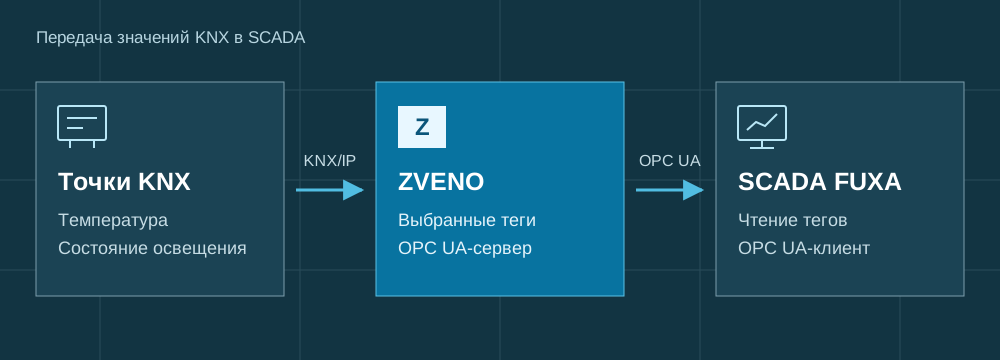
Tags from multiple KNX/IP connections are available to SCADA through a single OPC UA server.
1. Prepare points in ZVENO
Create a KNX/IP connection and add points from an ETS project or manually. Set the group address, DPT and function for each point, then save and apply the settings.
| Point | KNX address | DPT | Value in FUXA |
|---|---|---|---|
| Room temperature | 2/0/0 | 9.001 | 22.12 °C |
| Lighting feedback | 0/0/7 | 1.001 | true — on |

2. Connect FUXA to the OPC UA server
In the Plugins section of FUXA, install the OPC UA driver if it is not already installed.
In FUXA, open Connections, add a connection of type OPCUA and enter the ZVENO server address. The address and port come from the gateway's OPC UA settings.
- Enter the endpoint in the format
opc.tcp://<gateway-address>:4840/knx/. Replace the placeholder with ZVENO's network address accessible from the SCADA station; the port must match the gateway settings. - Select
SecurityPolicy NoneandSecurityMode None. This connection uses no signing or encryption: place it in a protected network segment and use a VPN for remote access. - Enable the connection and set the polling interval. This example uses 1 second.
3. Select tags in FUXA
In the OPC UA browser, expand Objects → KNX, select the source and required tags. Add room temperature and lighting feedback, then save the FUXA configuration.
A SCADA tag is linked to a published ZVENO point through its NodeId. The name helps locate the point in the tree, while the NodeId specifies its address in OPC UA. You can check publication in ZVENO's built-in viewer.

In FUXA, selected tags can be mapped to a numeric display or a status indicator. The procedure for mapping elements is described in the official FUXA documentation.
KNX values on the SCADA screen
The FUXA tag table shows room temperature Room temperature and lighting status Light feedback. The data type, current value and update time are shown for each point.

When preparing screens, use separate tags for measurements and equipment feedback.
Connecting your SCADA
Integrating ZVENO with SCADA requires an OPC UA client and access to the gateway server. The point list, data types, write permissions and network parameters are defined by the site project.
Send us the SCADA name, KNX/IP device models and point list. We will configure connections, prepare publication and perform data exchange acceptance using agreed scenarios. Scope of KNX / OPC UA implementation work.